
Our Location
304 North Cardinal St.
Dorchester Center, MA 02124

Learn how to make digital stickers with transparent PNG files for personal planners, notes and digital scrapbooks in a few simple steps.
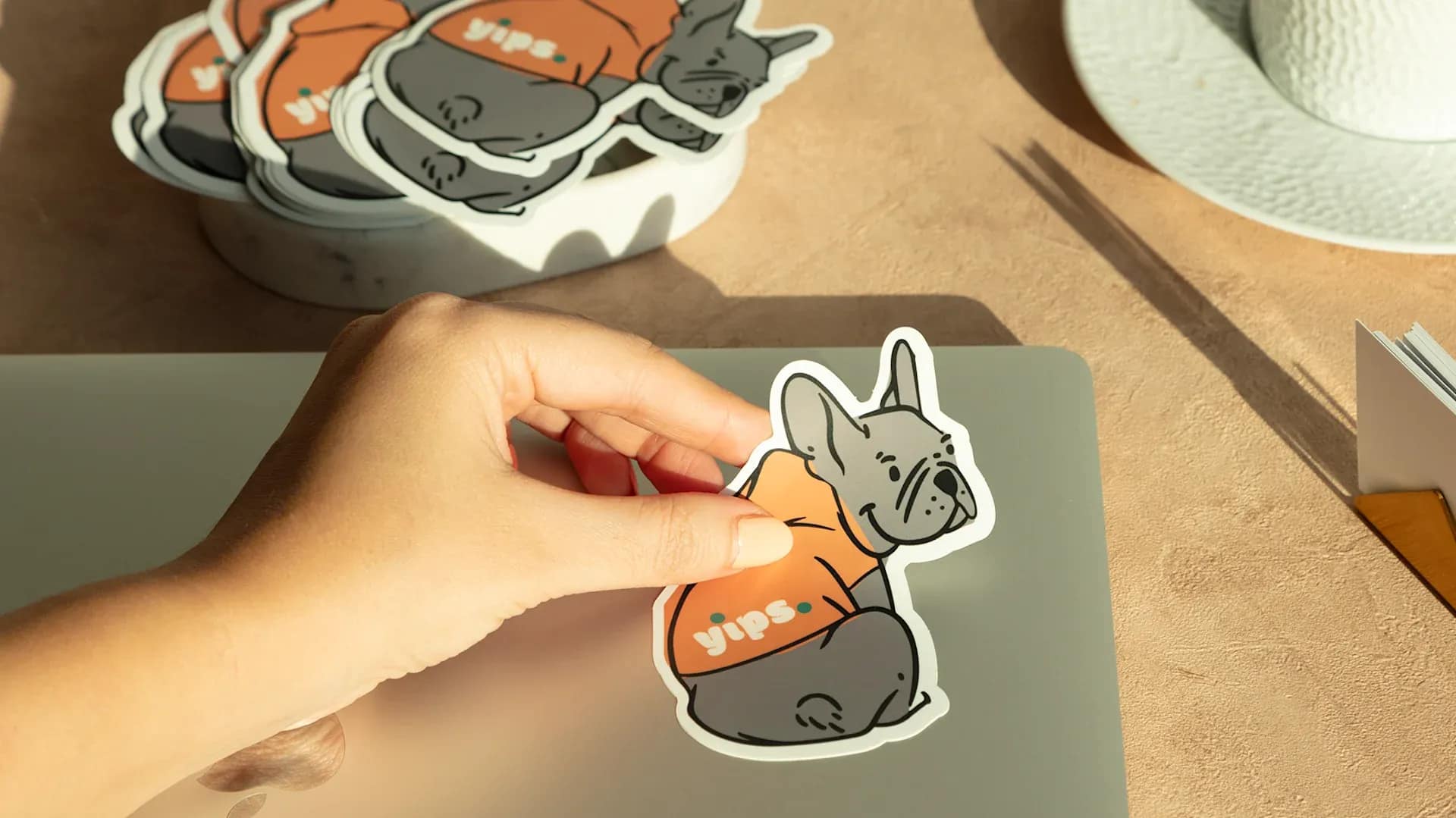
Learning how to make digital stickers with transparent PNG files is a fun way to personalise notes, planners, journals and digital scrapbooks. Since the background is transparent, the sticker can sit naturally on a page without a visible square around it.
This guide shows you how to prepare cartoon PNGs as personal digital stickers while keeping the files crisp, organised and easy to use.
A digital sticker is an image that you place on a digital page, much like a physical sticker on paper. It may be decorative, such as a cute character or star, or functional, such as a reminder icon, label or mood marker.
Most digital stickers are PNG files because PNG supports transparency. They can be used in many note-taking, presentation and design apps that allow image insertion.
Look for a graphic with a clean silhouette, clear details and enough resolution for the intended size. Cute animals, expressive cartoon faces, food illustrations, seasonal objects and simple fantasy creatures often work well.
Avoid downloading the preview as a screenshot. Use the original PandaPNG download and check the current usage terms. The general licence is for personal, educational and non-commercial use unless otherwise specified.
Open a design app and create a square canvas. A transparent canvas is ideal if the app supports it. Place the downloaded PNG in the centre.
Zoom in and check for stray pixels or a faint box around the image. If the original transparency is already clean, do not remove the background again; unnecessary processing can damage fine edges.
A white outline makes a digital image feel more like a real sticker and helps it stand out on dark or patterned pages. Add a modest border that follows the shape. A very thick outline may hide small details.
A light shadow can separate the sticker from the page. Keep the blur and opacity low so the design remains clean.
Digital planner stickers do not need to be enormous, but exporting them too small may cause blur. Keep a larger master version and create smaller copies only when needed.
Export with transparency enabled. Open the saved image on both a light and dark background to confirm that no white or coloured box appears.
Create folders by purpose, such as Animals, Reactions, School, Birthdays, Holidays and Decorative Elements. Use clear filenames instead of leaving every download with a random number. You can also create a visual index page showing your favourite stickers.
Do not upload PandaPNG files as a public sticker pack, resell them, or distribute the original downloads. Keep your collection for the personal or educational use permitted by the site.
A white square appears: The export lost transparency or the file was saved as JPG. Export again as PNG with transparency.
The sticker is blurry: Return to the high-resolution master and avoid enlarging a small copy.
The edge looks jagged: Use a larger source image and avoid aggressive background removal.
The sticker disappears on the page: Add a narrow white outline or a subtle contrasting shadow.
The most attractive collections feel consistent. Choose graphics with similar colours, line weight or subject matter, then apply the same border and shadow settings. Once you know how to make digital stickers with transparent PNG files, PandaPNG’s cute animal, kids, holiday and cartoon collections can provide plenty of ideas for your personal projects.
